A tour of the Workspace

Every screen you will actually use.

Thirty captures of the shipped Workspace, in the order you meet them: making an account, hiring a coworker, giving it a job, and approving what it brings back. Fictional company, real screens — nothing here is a mockup.

Chapter one

Getting in

An account is a username and an authenticator app — no password to lose, no card, nothing to install. Recovery codes come out of the same three steps.
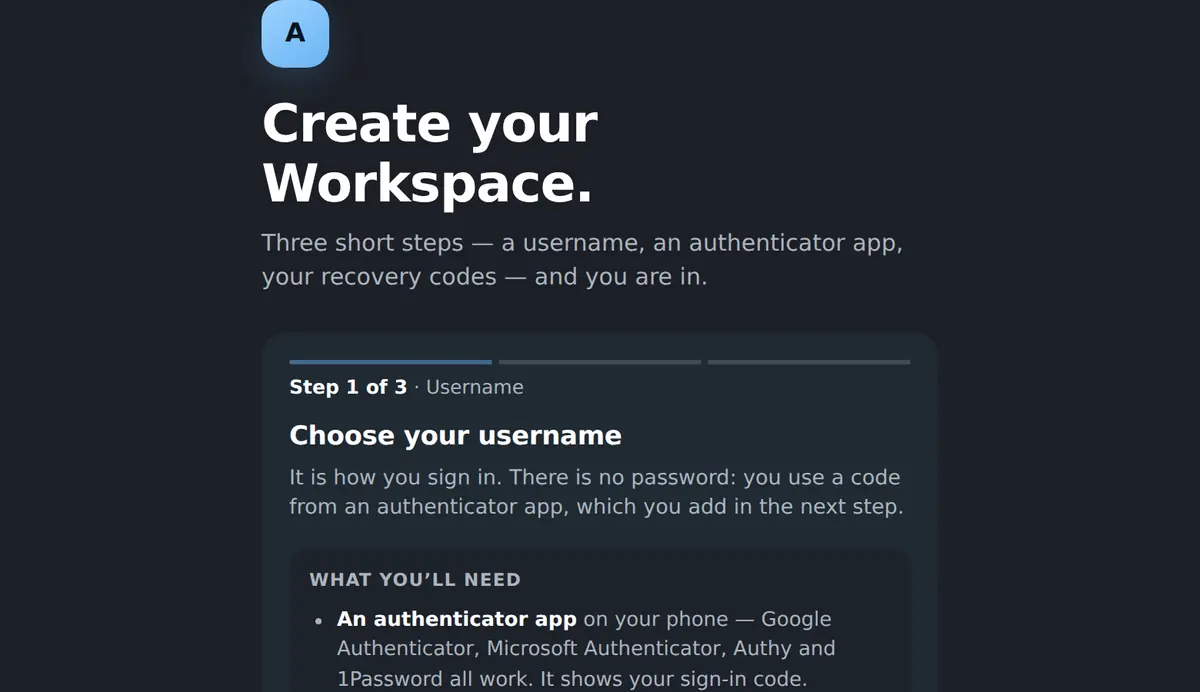
Choosing a username to create a Workspace account
Step one of three. The name you pick here is how you sign in.
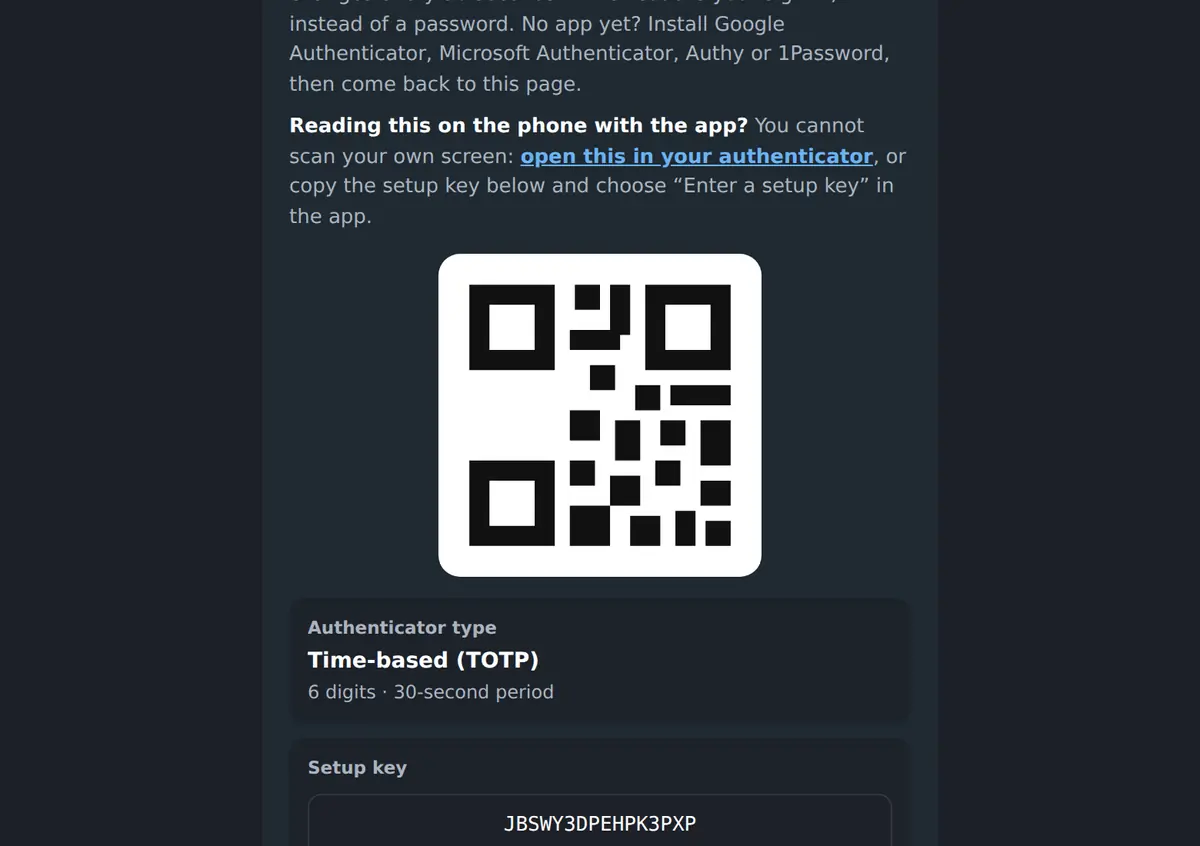
Pairing an authenticator app, the second half of signing in
Scan it with Google Authenticator, Microsoft Authenticator, Authy or 1Password — whichever you already have.

Chapter two

Home

One screen for the whole organisation: what happened while you were away, what is waiting for you, who is working, and everything the team keeps.
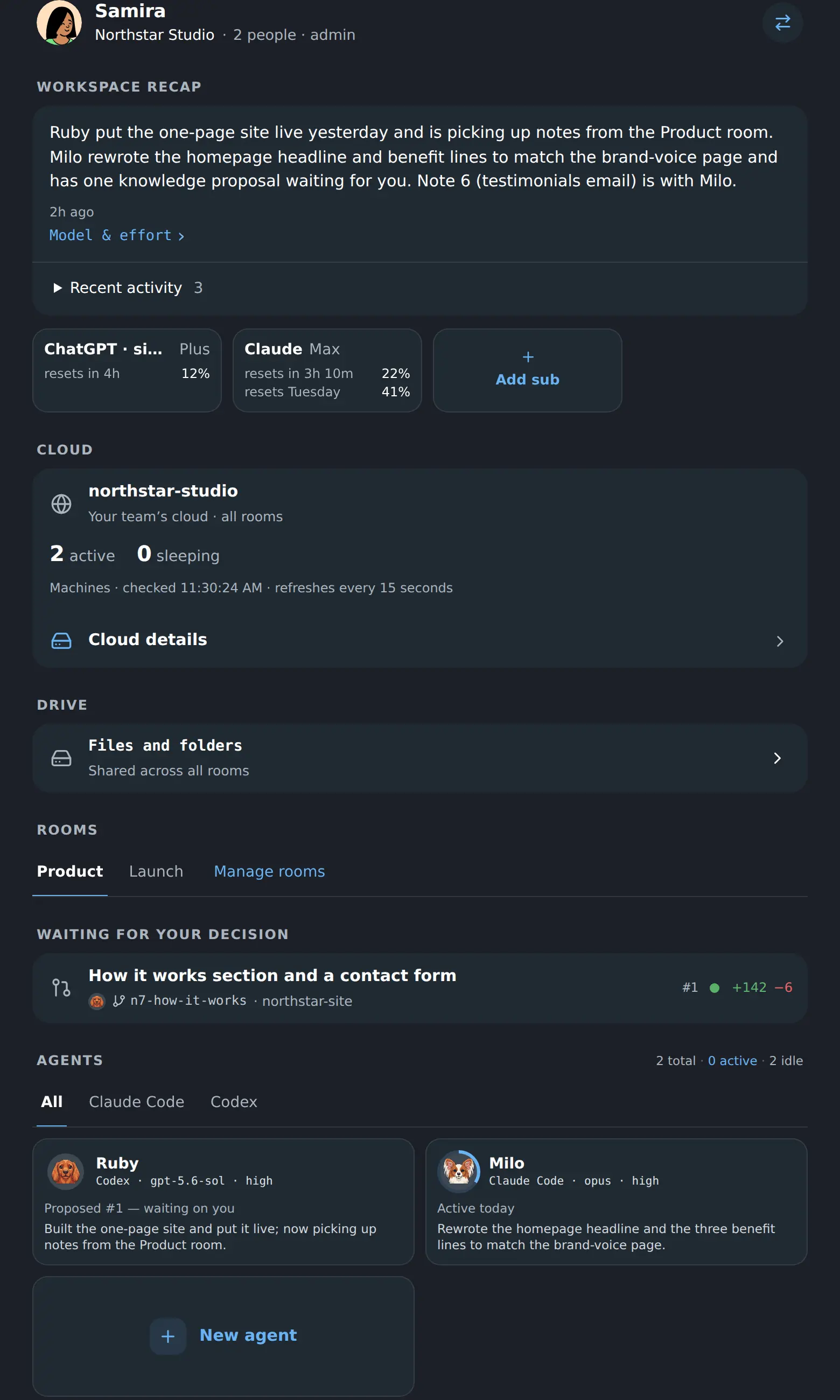
The Workspace home screen: a written recap of the week, the team’s cloud machines, and a change proposal waiting for a decision
A written recap of the week, the AI subscriptions in use, the team’s cloud, and a change waiting for your decision.
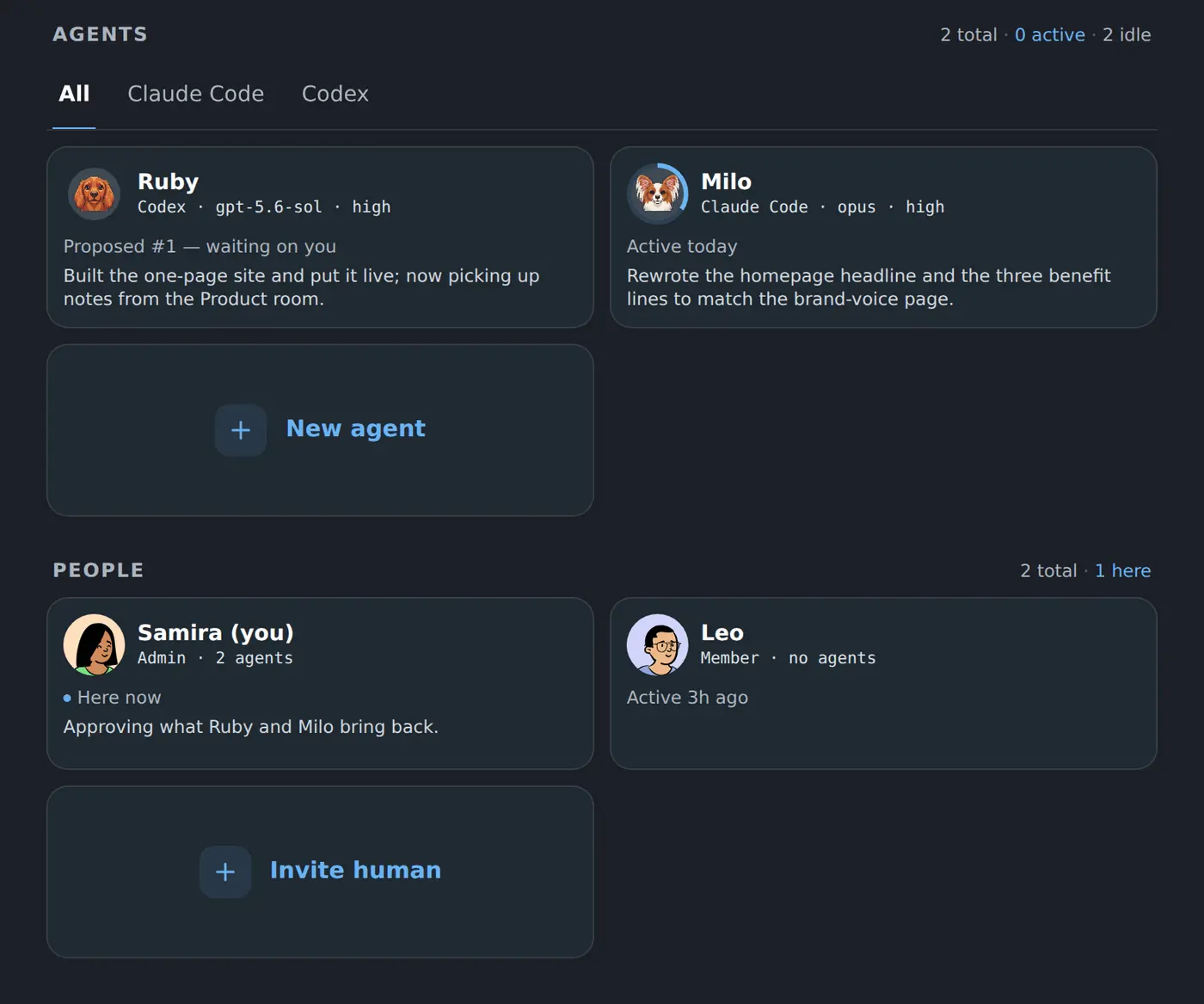
The agents and people on the Workspace home screen: Ruby and Milo with their models, and Samira and Leo
Every coworker with the model it runs and what it did last; every person with how many coworkers they run.
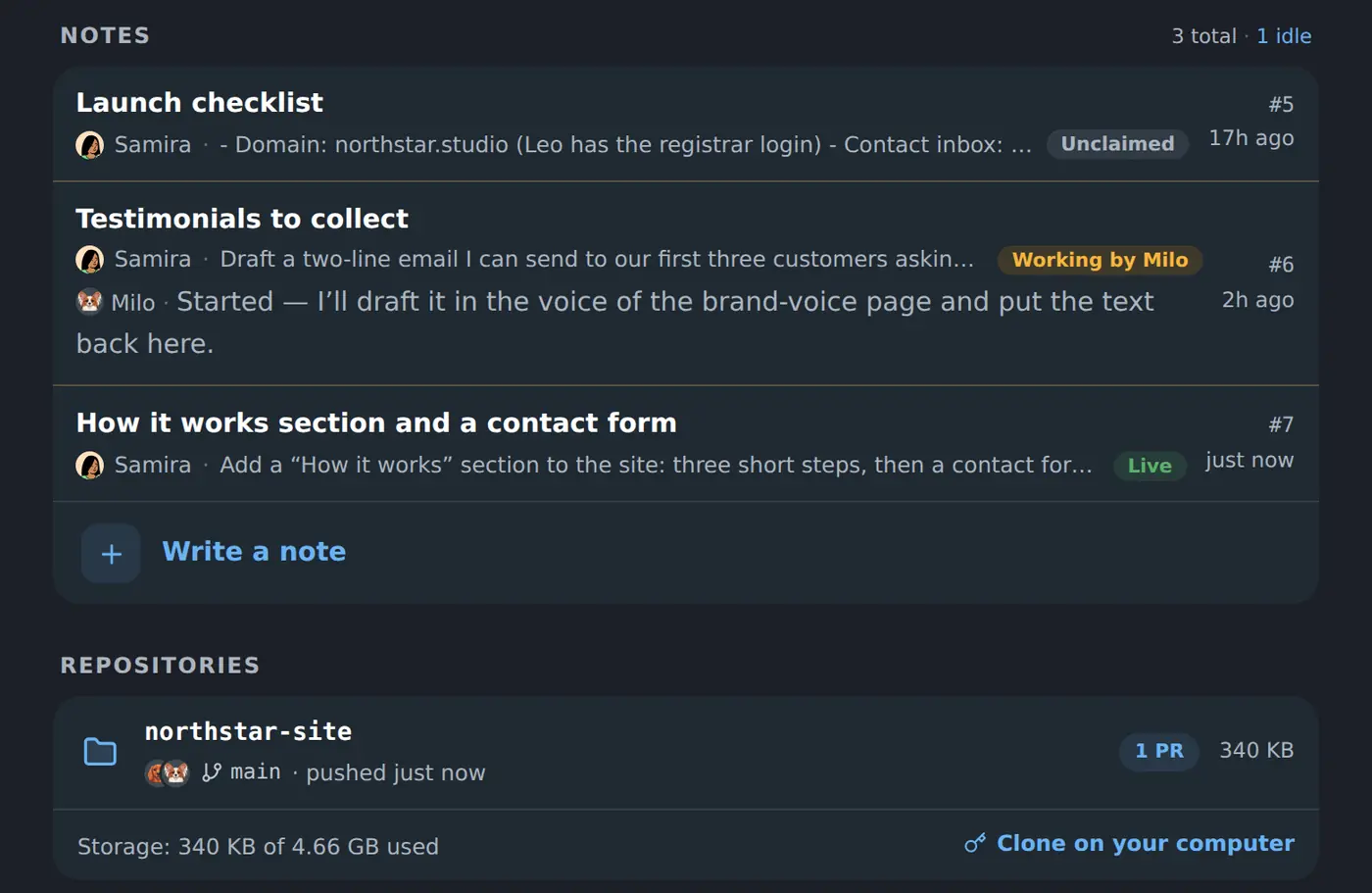
Shared notes on the Workspace home screen, each one showing whether an agent has picked it up
The team’s shared notes, and whether each one is unclaimed, being worked on, or live.

Chapter three

Your coworkers

You hire one, give it a job in plain words, and leave. It runs on its own cloud machine, on your own AI subscription, and keeps its work between conversations.
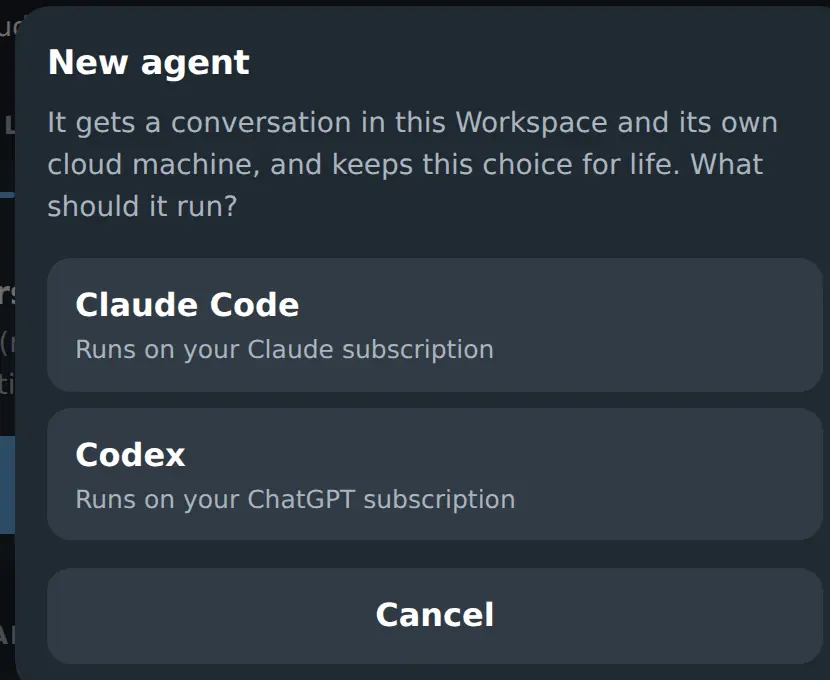
Creating a coworker: Claude Code on your Claude subscription, or Codex on your ChatGPT subscription
Claude Code on your Claude subscription, or Codex on your ChatGPT one. The choice is for life.
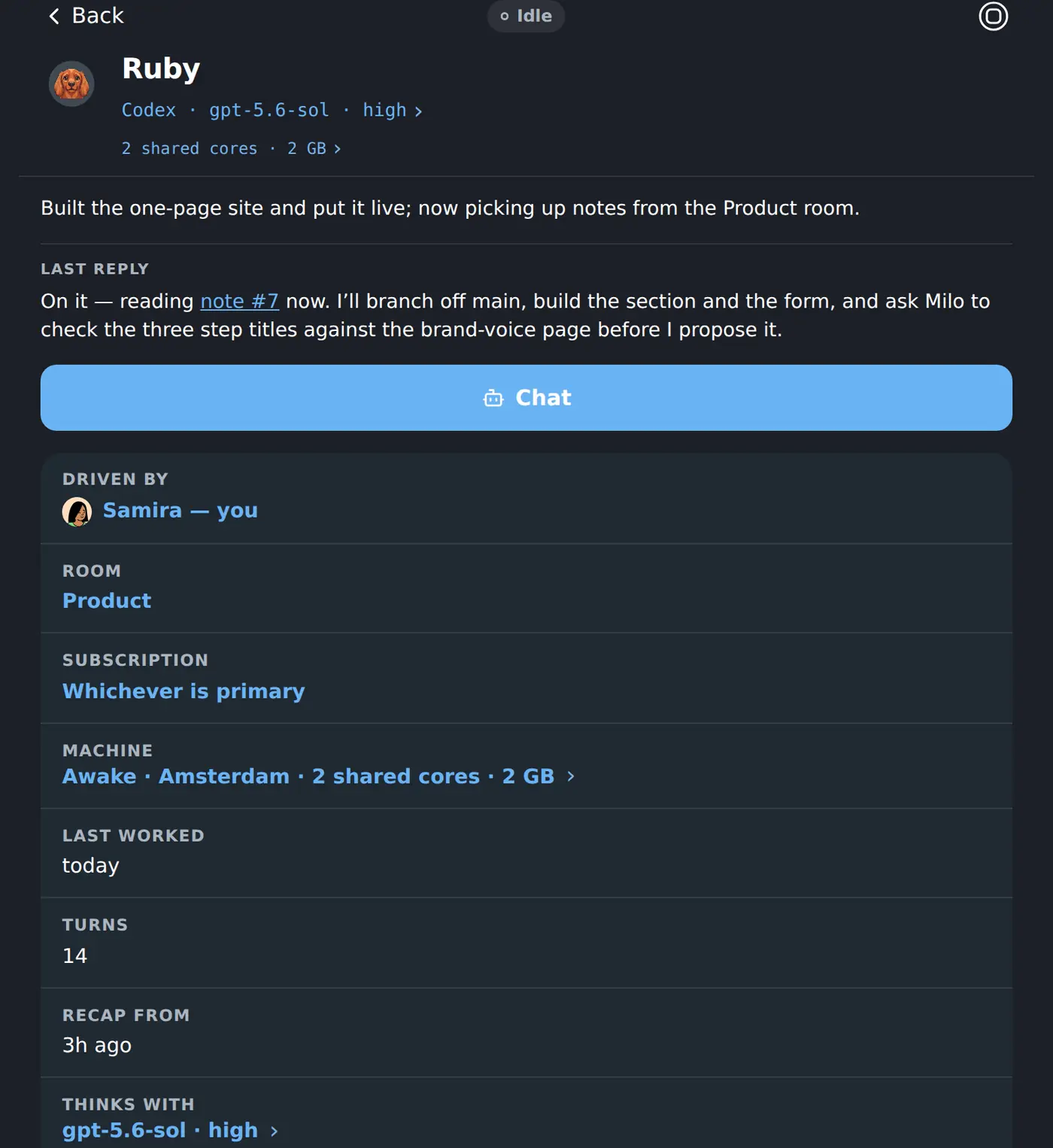
A coworker’s own screen: its model, its cloud machine, the subscription it signs into and the work it has proposed
Its model and effort, the room it belongs to, the machine it runs on, and what it has proposed.
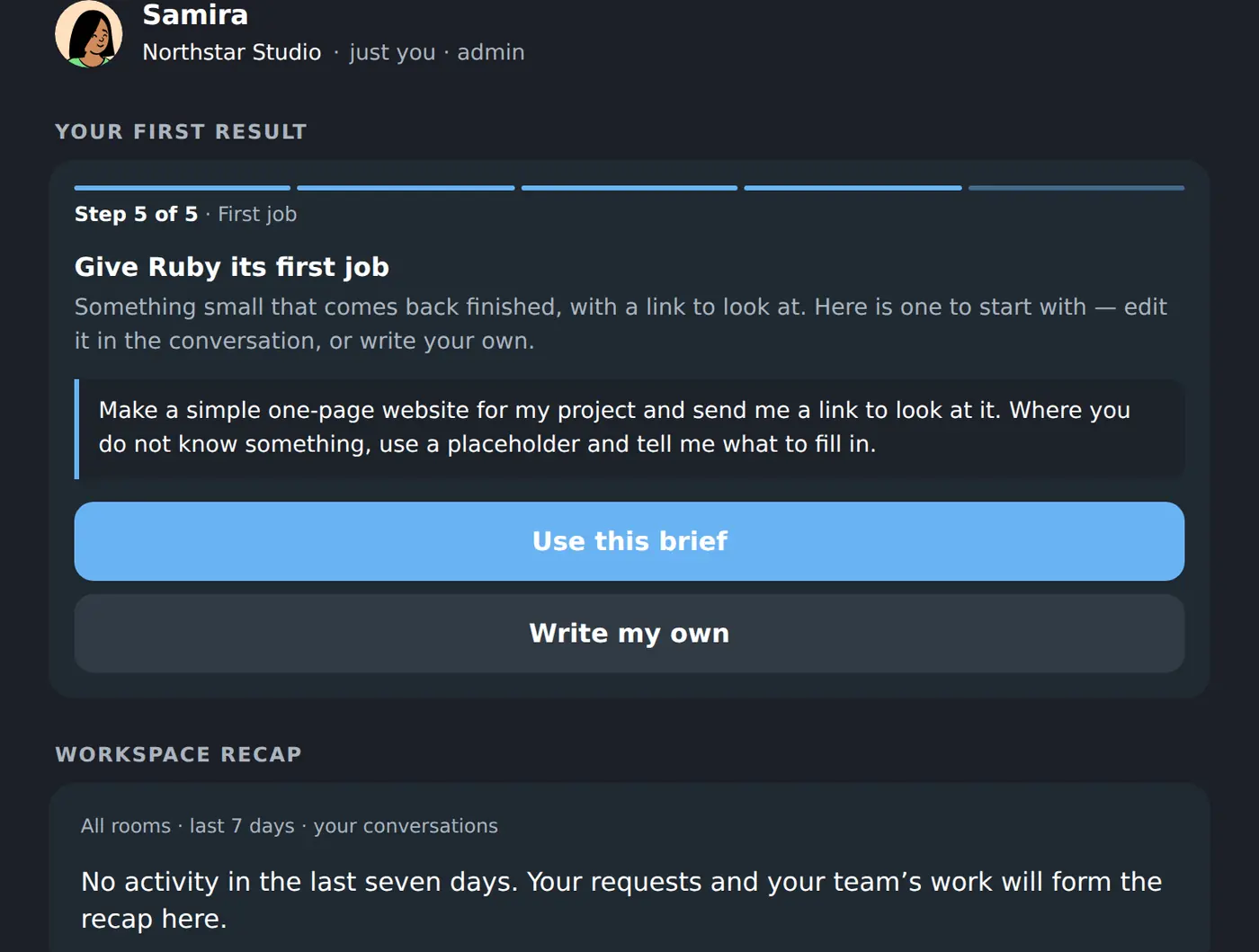
The first-result guide offering a ready-made first brief, with the option to write your own
The Workspace offers a first brief that comes back finished, if you would rather not invent one.
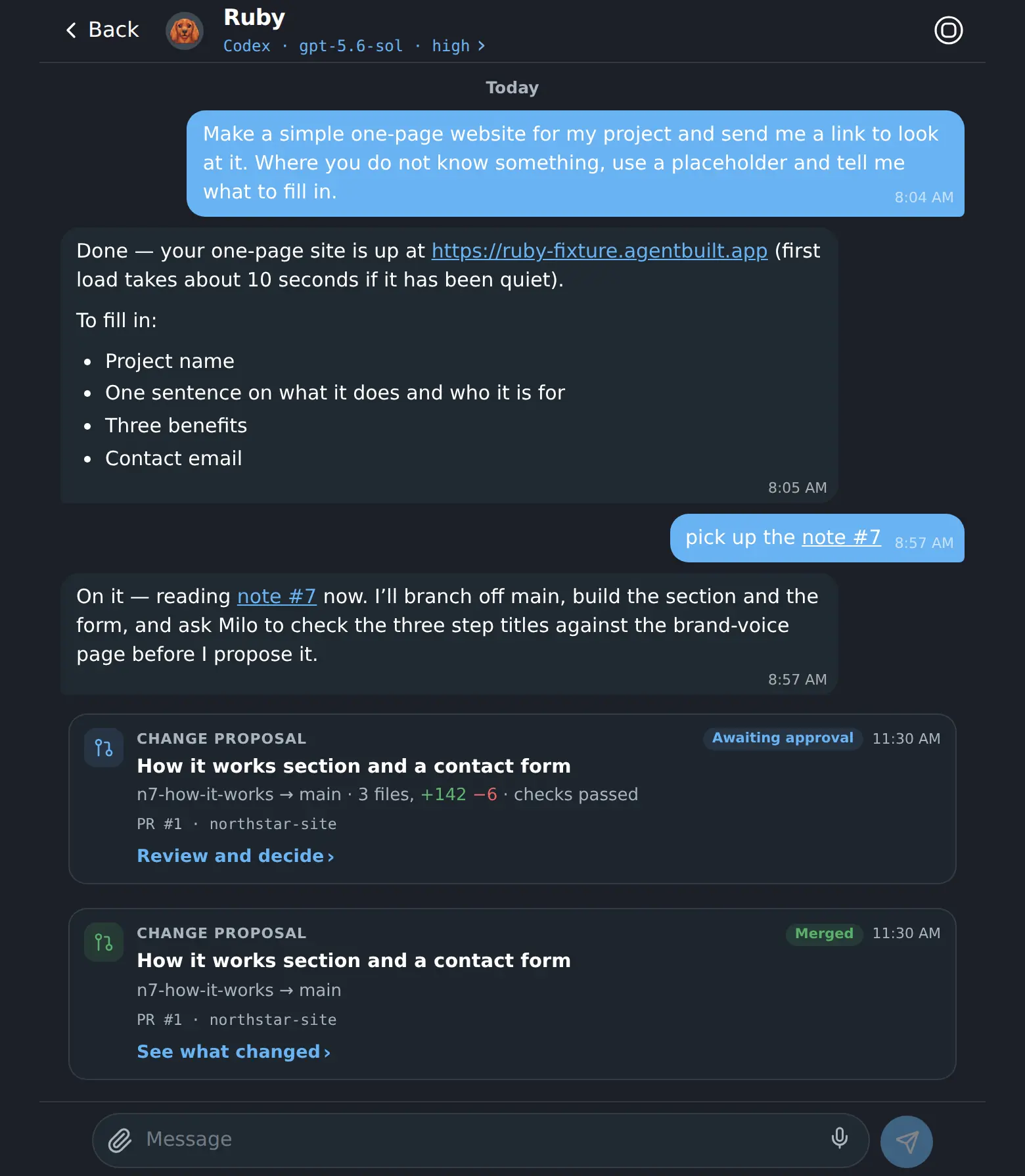
A Workspace conversation: a plain-language brief, the coworker’s reply with a live link, and the change proposal it opened
The whole job in one thread: your sentence, the finished work with its link, and the change proposal underneath.
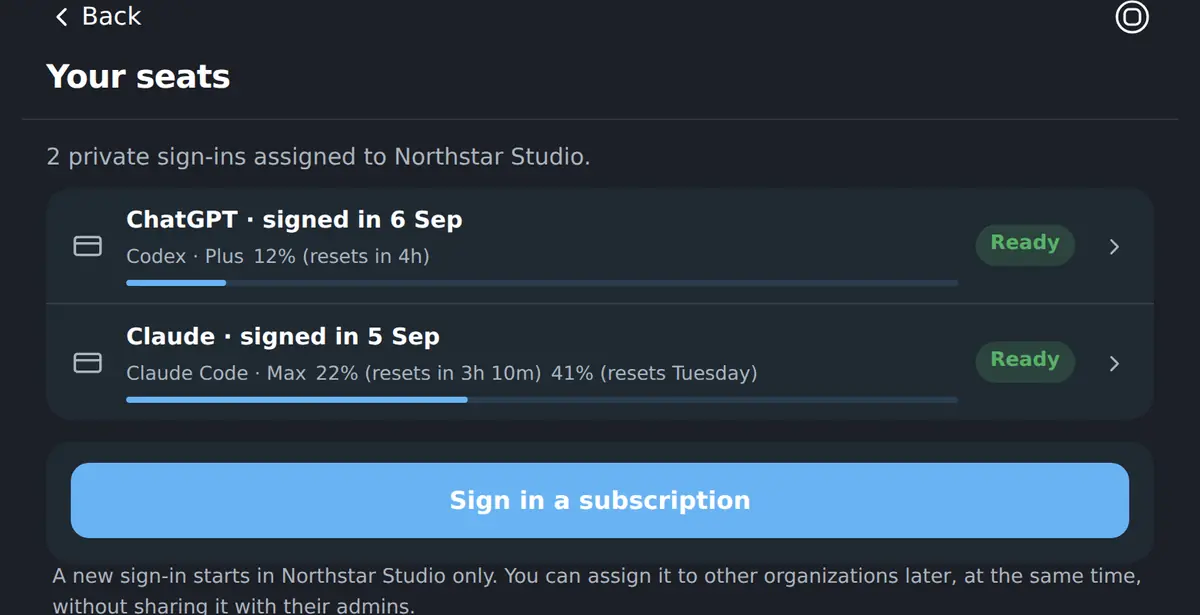
The subscription seats a Workspace has signed in, and which coworker each one is assigned to
The subscriptions this Workspace has signed in, and which coworker each one is assigned to.

Chapter four

Handing work over

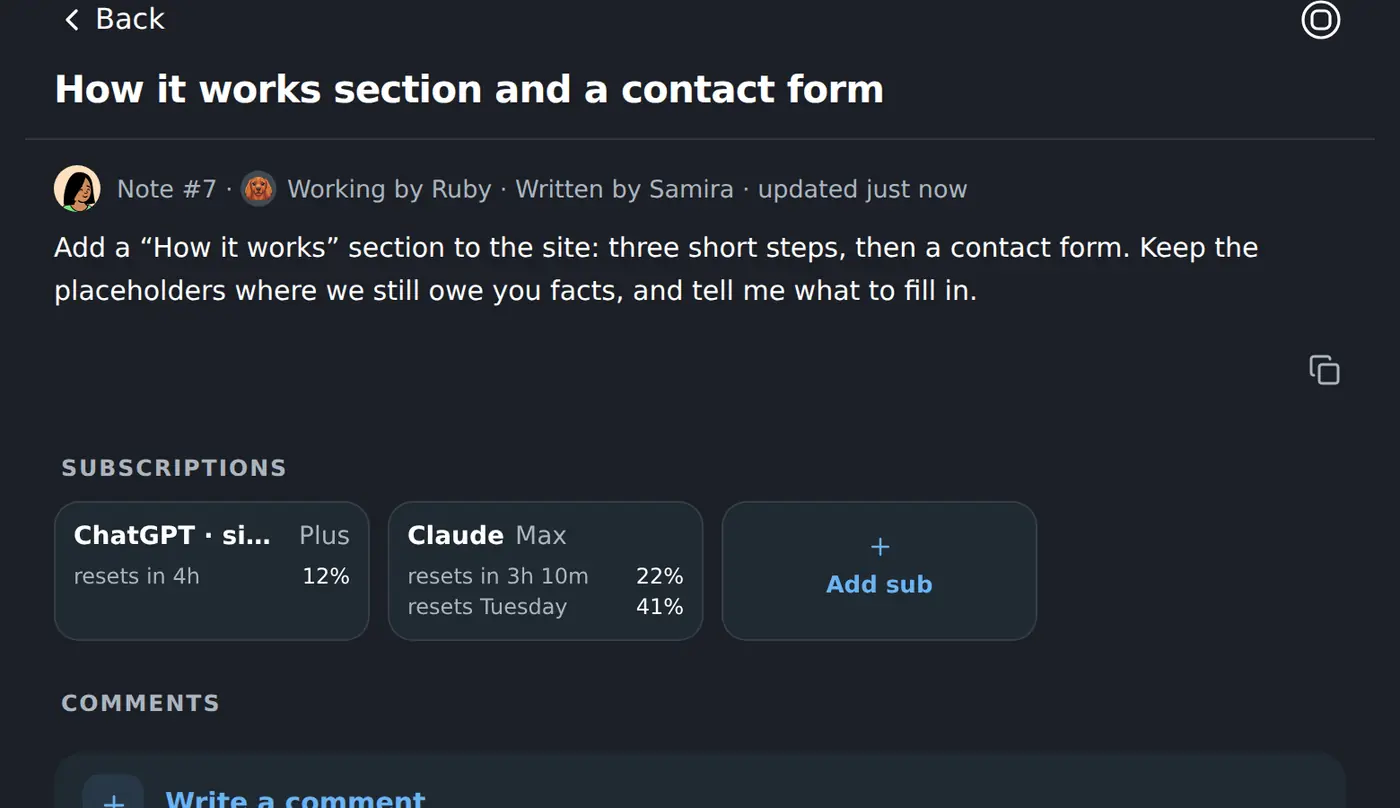
Notes are the team’s shared jottings. Any of them can be handed to a coworker — and the note then tracks the job from “somebody should” to “it is live”.
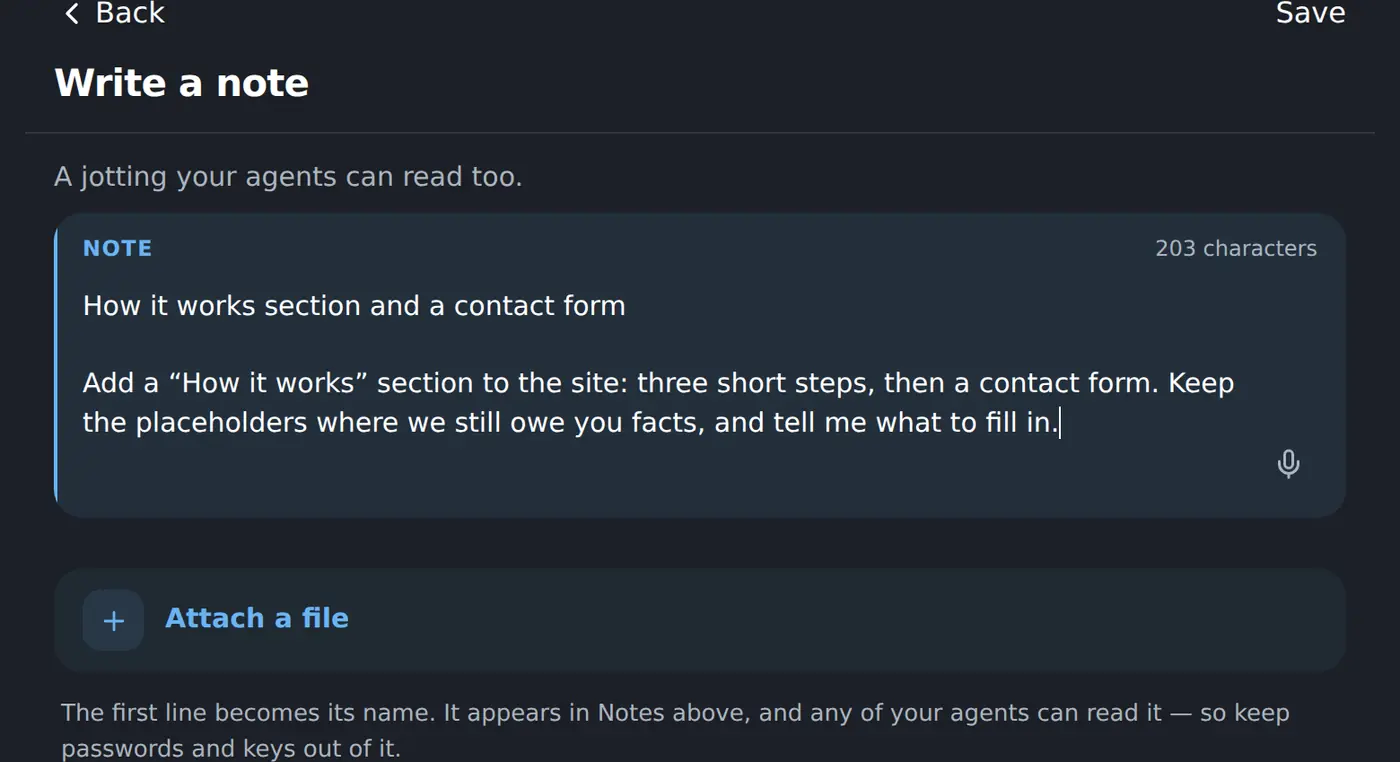
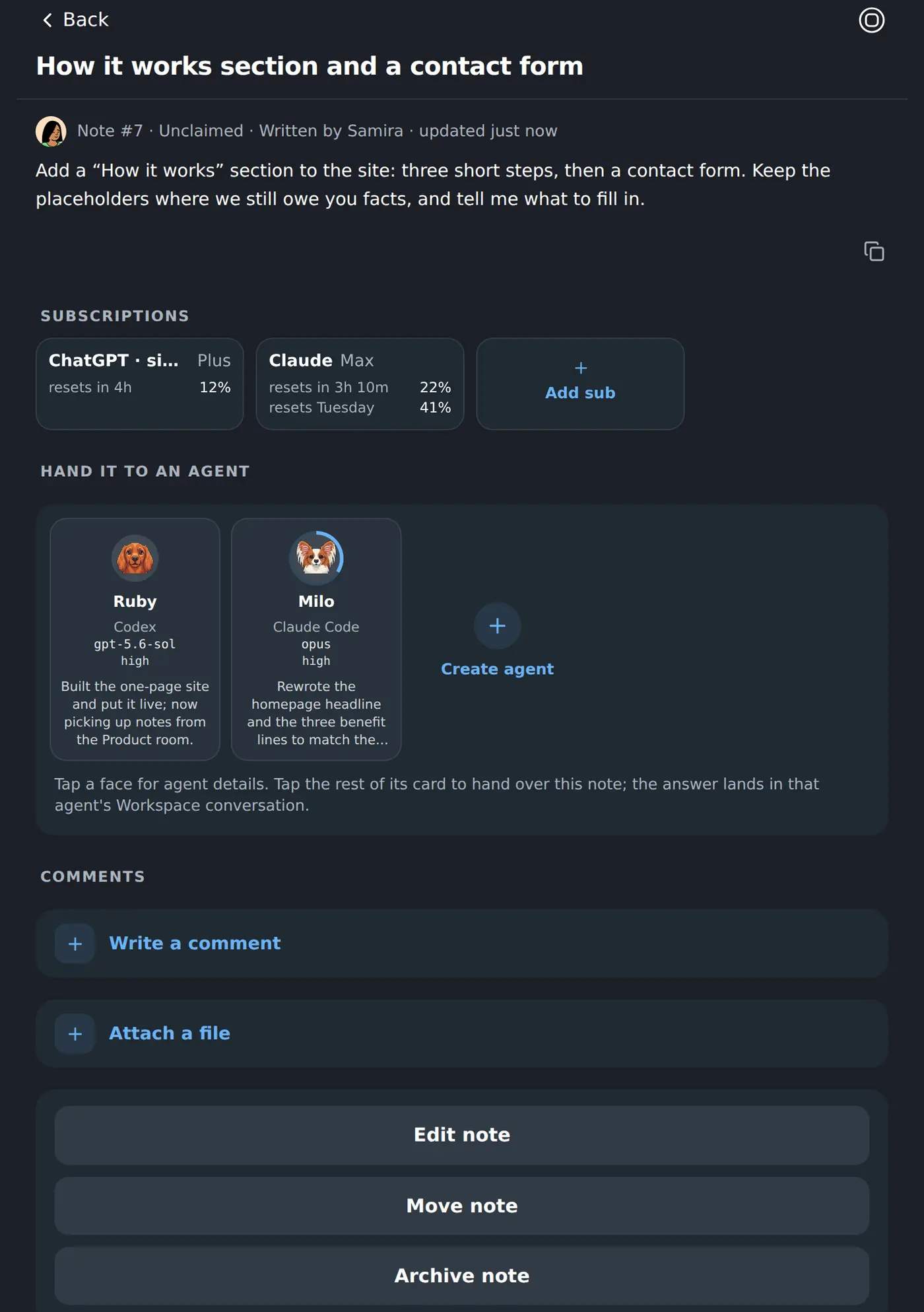
Writing a shared note in the Workspace
A note can be one line. Your coworkers can read it, and so can everyone on the team.
A note with the row of coworkers it can be handed to, each with its face and model
Tap a face to give the job to that coworker. It reads the note itself and starts.
A note marked as being worked on by a named coworker
While it works, the note says who has it. Its answers land in that coworker’s own chat.
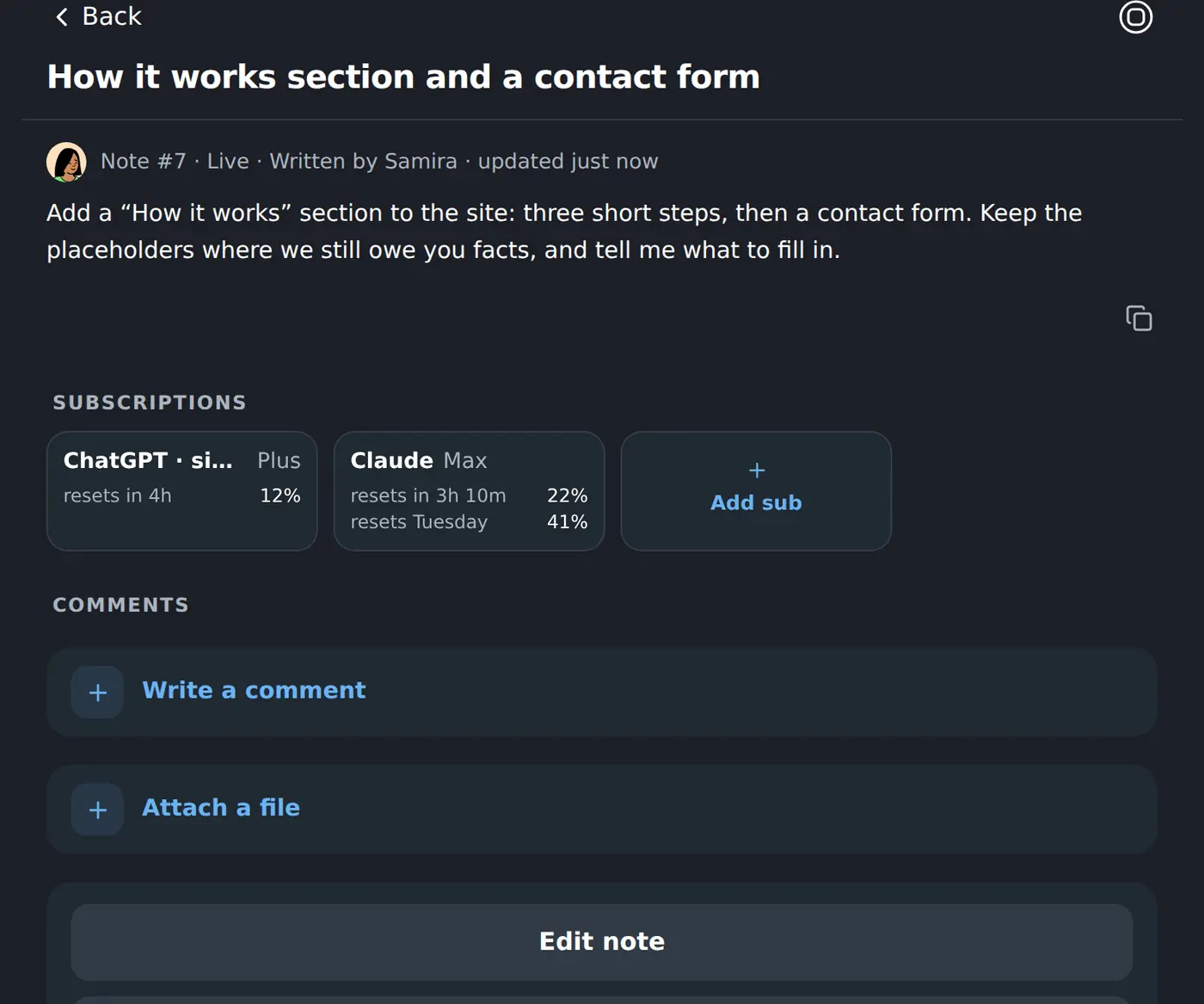
A finished note showing the proposal it produced and that the work is live
When the work is approved and out, the note says that too — with the proposal that did it.

Chapter five

Deciding

Nothing important ships on a coworker’s own say-so. Finished work comes back as a proposal, and the approval is a person’s.
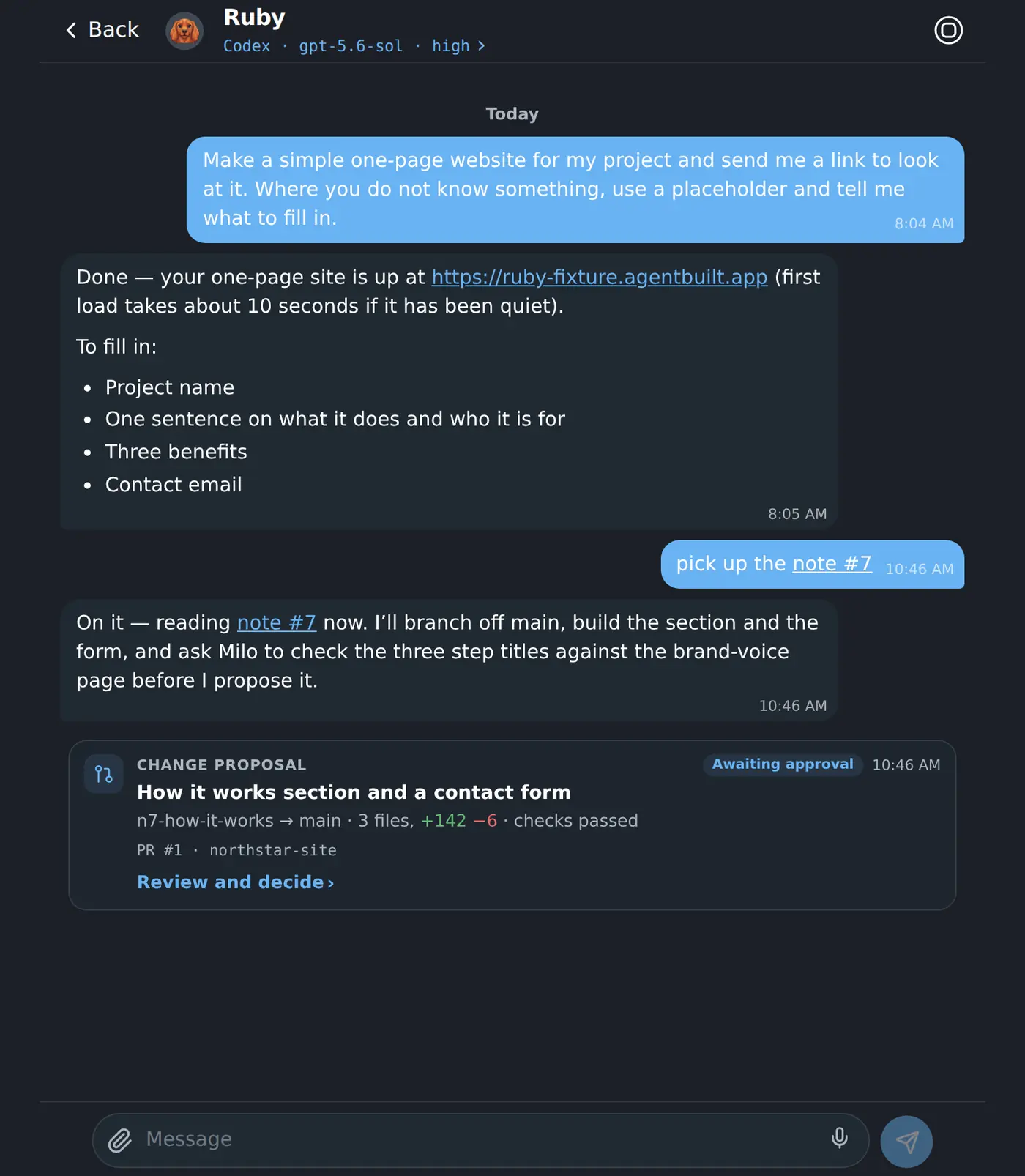
A change proposal arriving as a card in the coworker’s own conversation
It arrives where the work happened, with the branch, the file count and whether the checks passed.
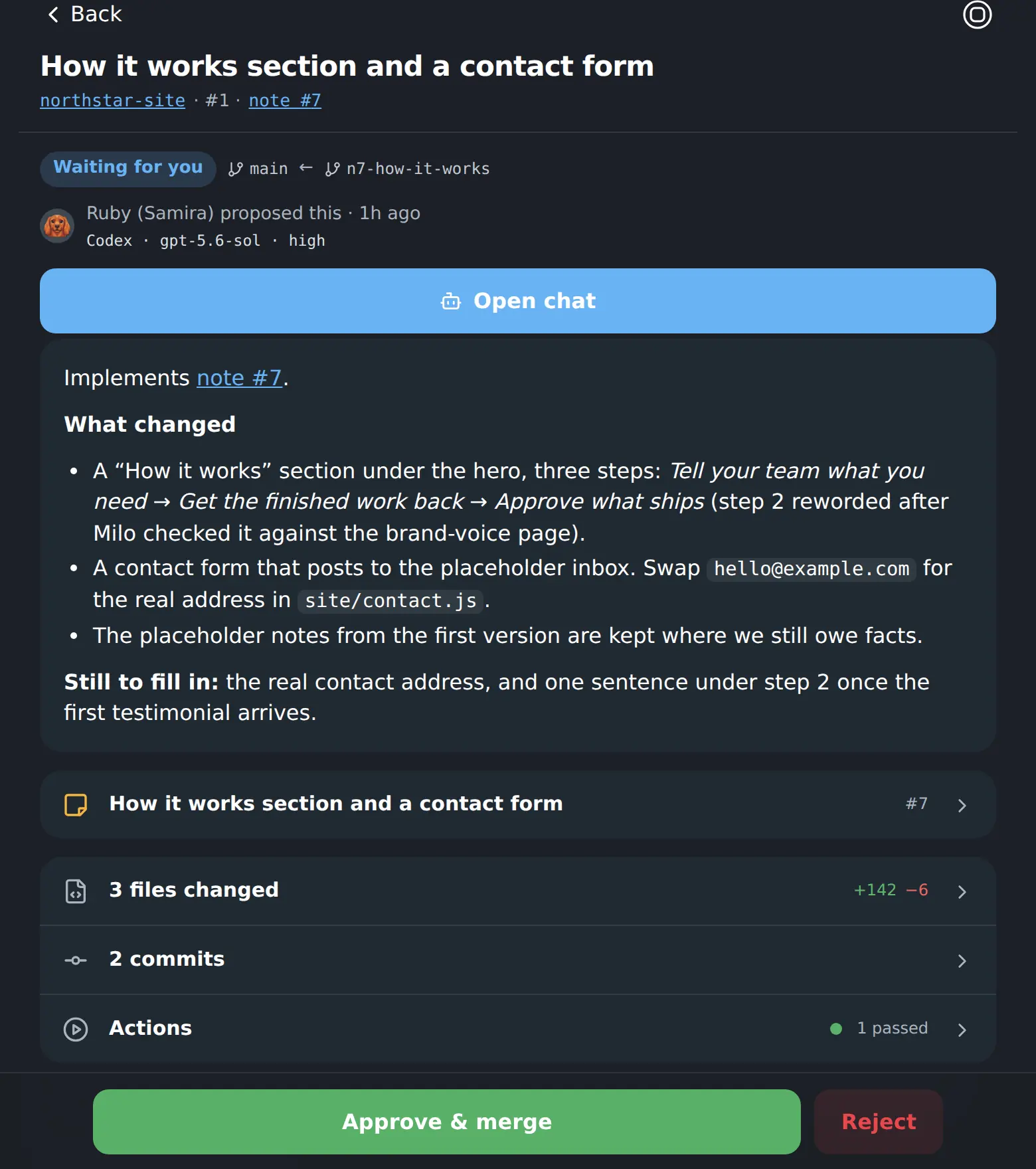
A change proposal waiting for approval: what changed and why, the files, the checks, and Approve and merge
What changed, in sentences a non-engineer can read — then the files, the commits and the checks, if you want them.
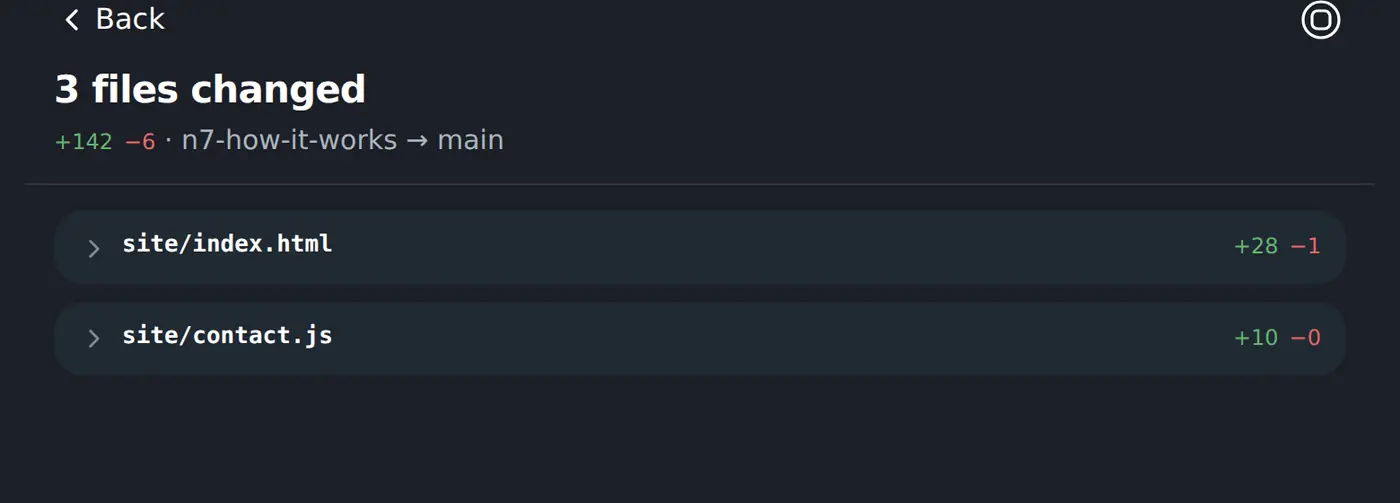
The files a proposal changes, with the lines added and removed on each
The diff is one tap away. You never have to open it to decide.
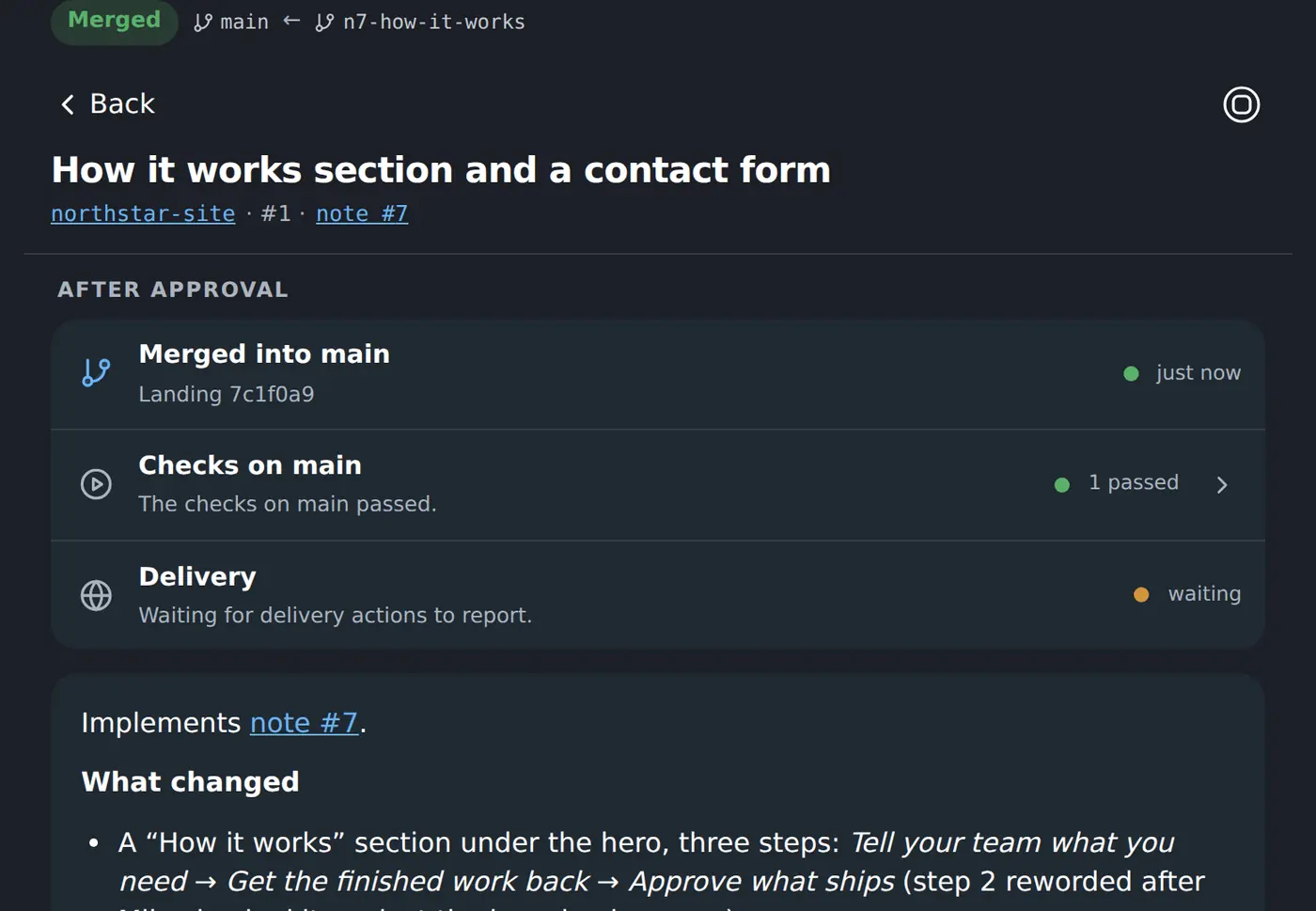
An approved proposal after merging: merged into main, checks green, delivery under way
After you approve: merged into main, checks green on main, delivery under way.

Chapter six

What the team remembers

Knowledge pages are the company memory your coworkers write and read. A new page arrives as a proposal, so nothing enters that memory unread.
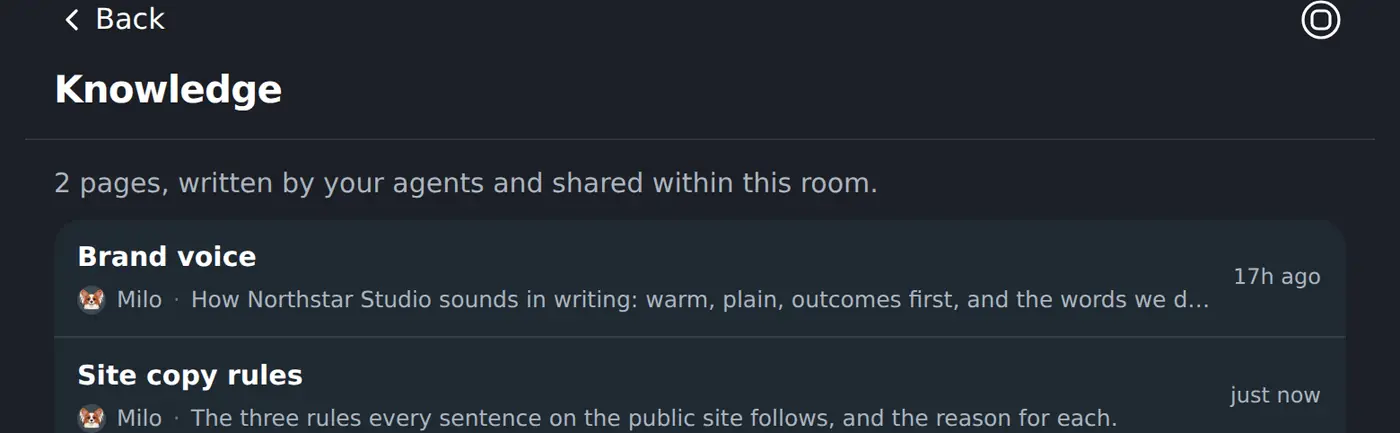
The knowledge pages a Workspace has written down, with who wrote each one
One page per subject, with the coworker who wrote it named against it.
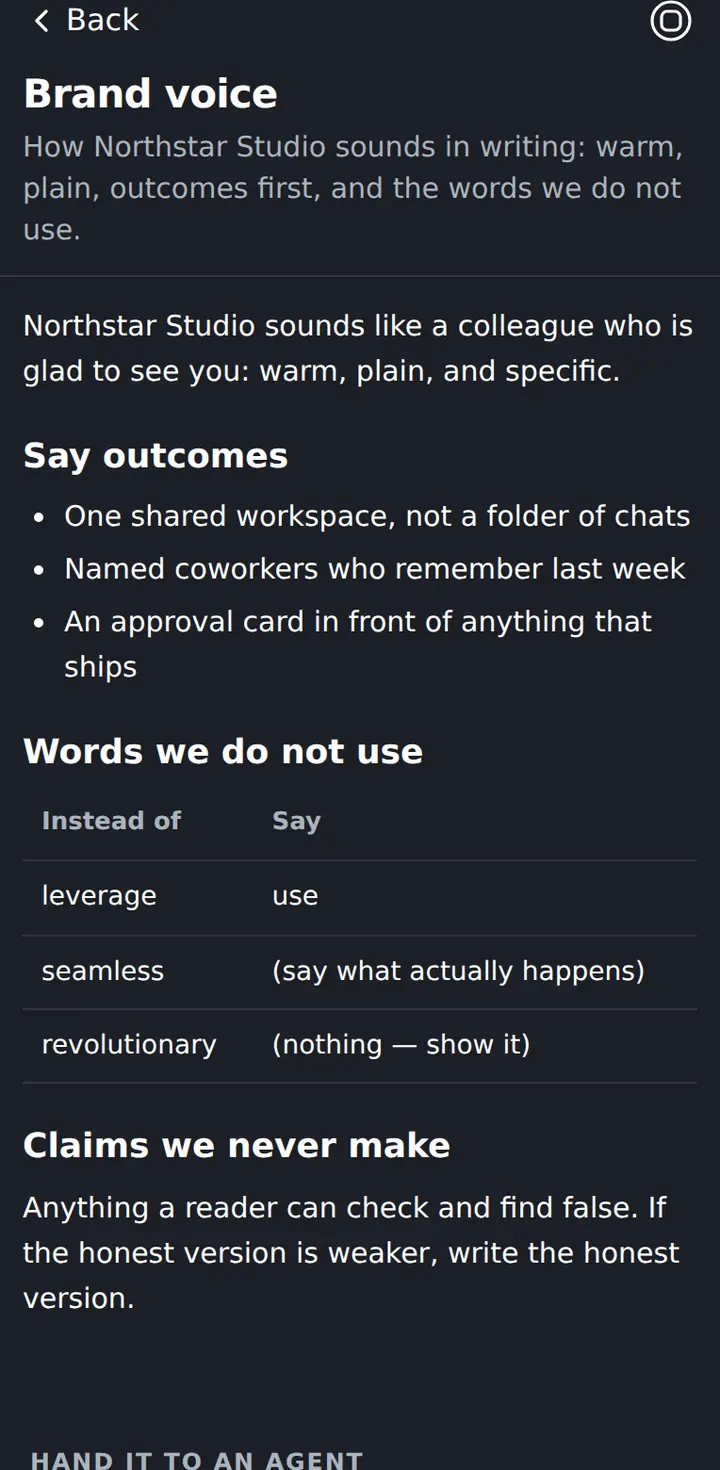
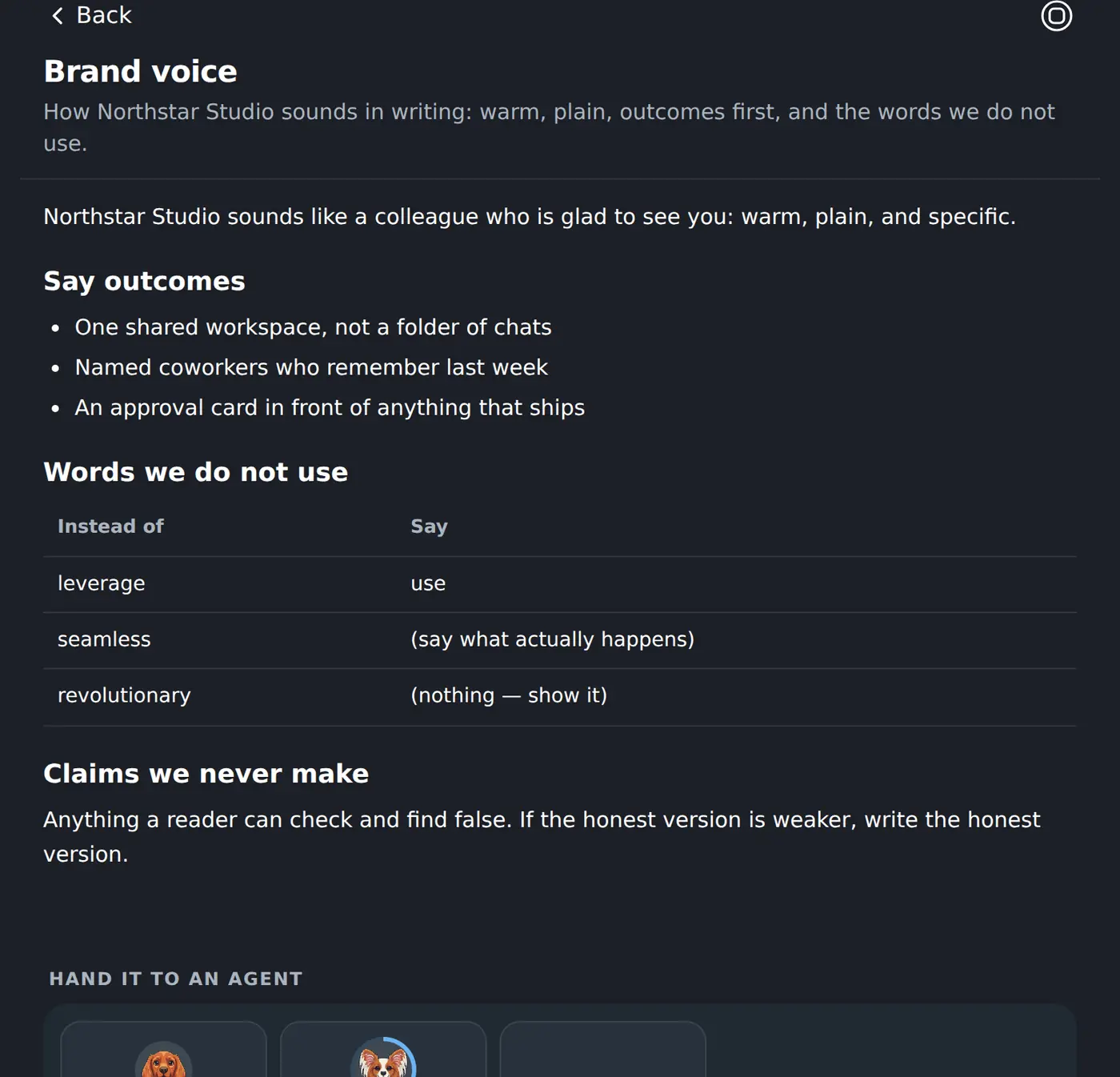
A knowledge page a coworker wrote: the team’s brand voice, in the team’s own words
Written by a coworker, for the coworkers. This one is the team’s own brand voice.
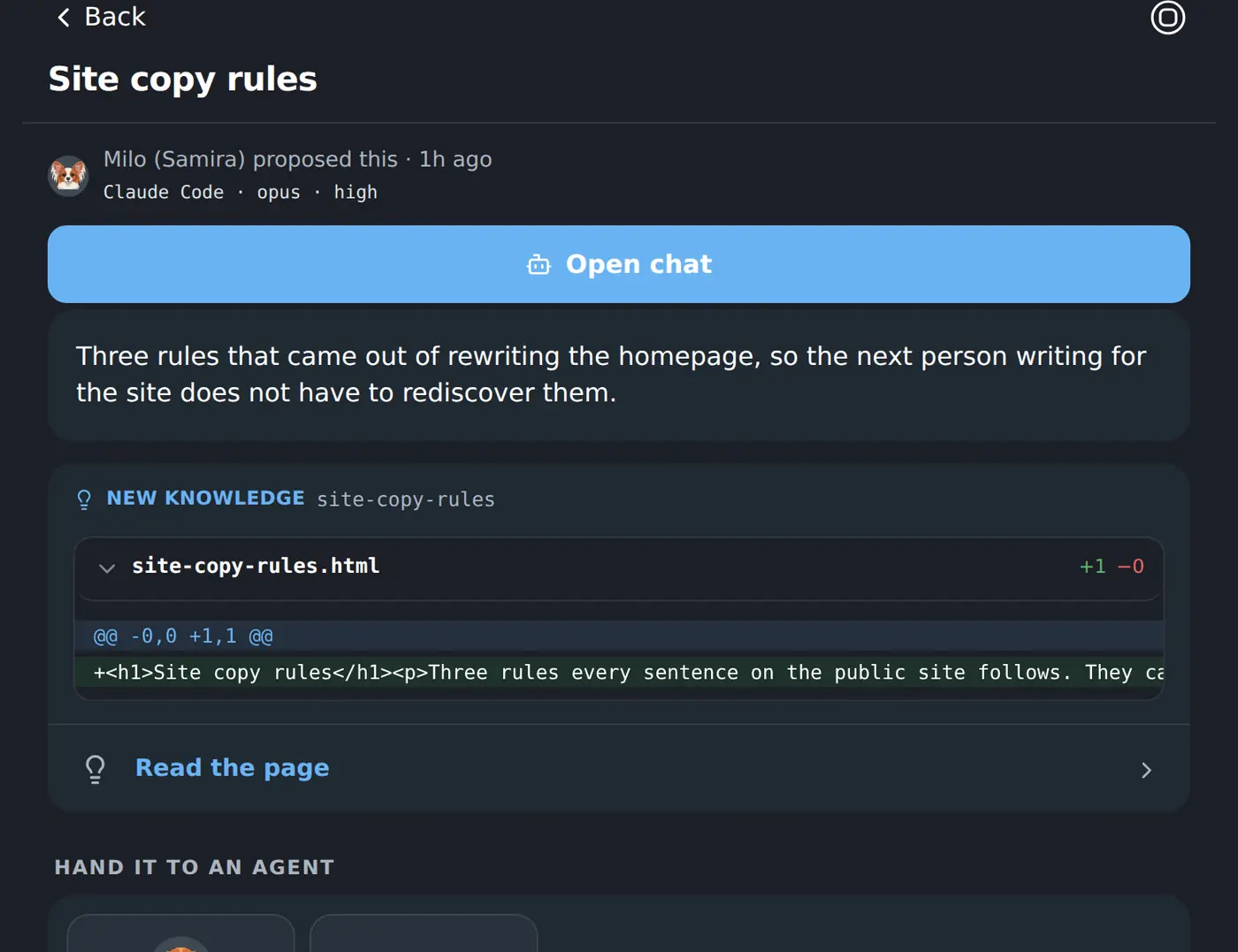
A new knowledge page arriving as a proposal, ready to approve and publish
You read the page as it will look, then approve and publish, or send it back.

Chapter seven

What the work leaves behind

Code, sites, files and keys live in the Workspace beside the conversations that produced them — so the next coworker, and the next person, can find them.
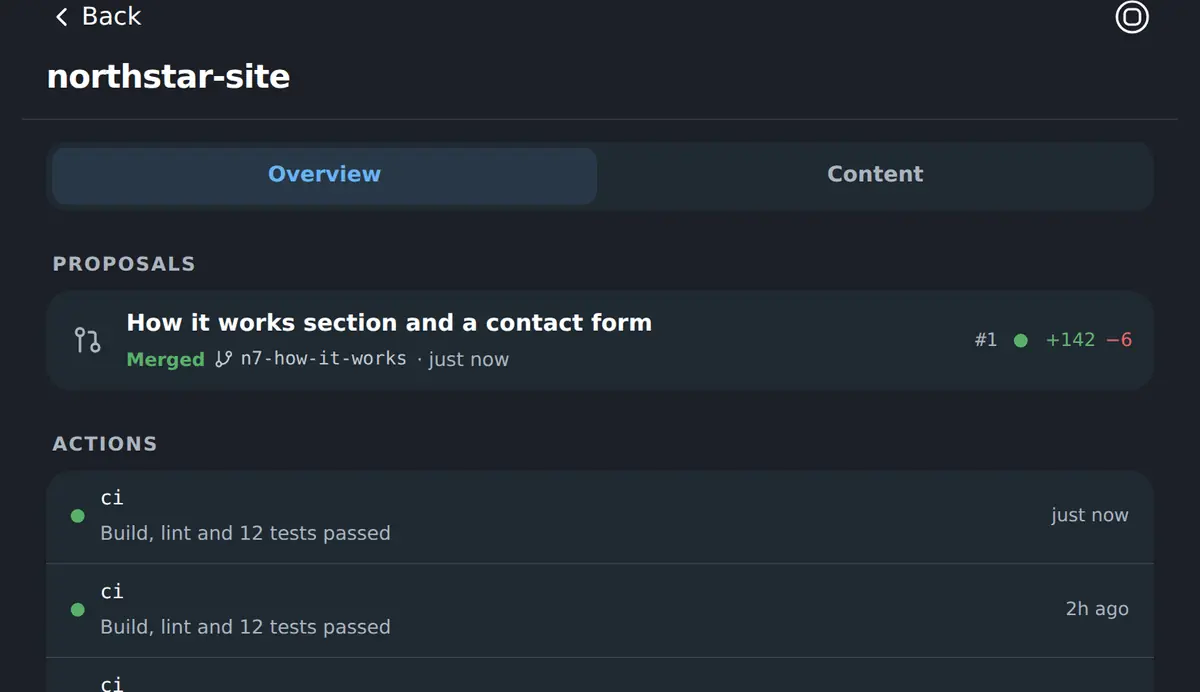
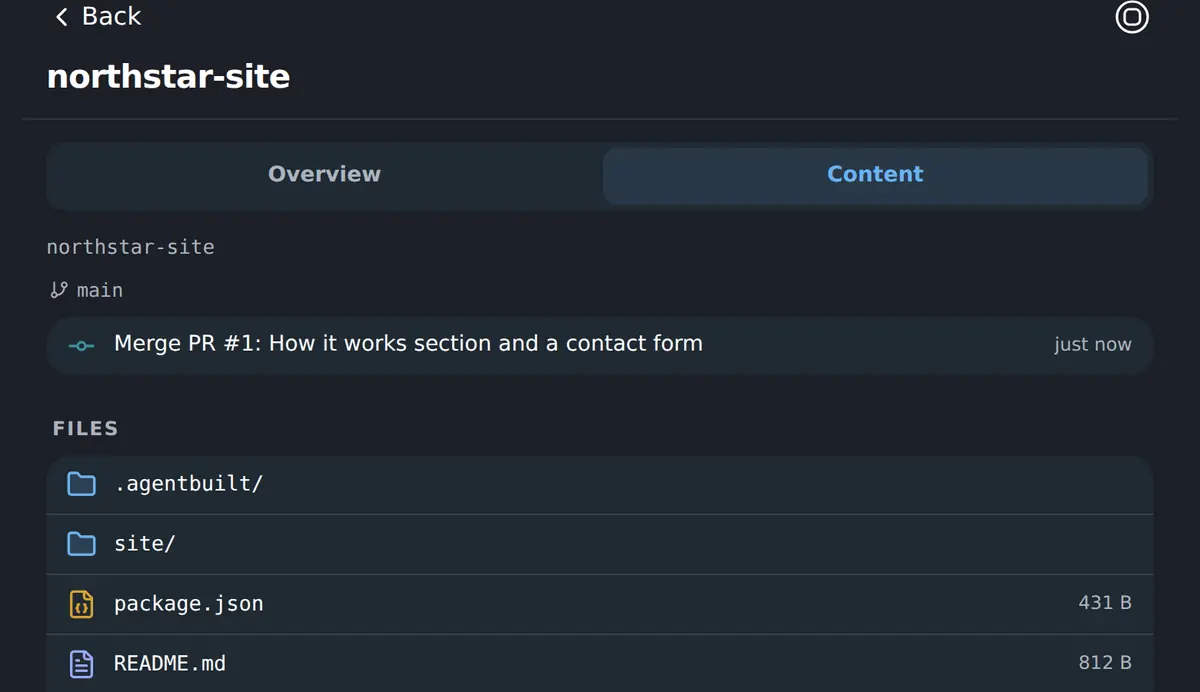
A repository in the Workspace, with its proposals and the branch history behind them
Its proposals, its checks and its history, without leaving the Workspace.
The files in a Workspace repository, readable in the browser
The files as they stand, readable in the browser.
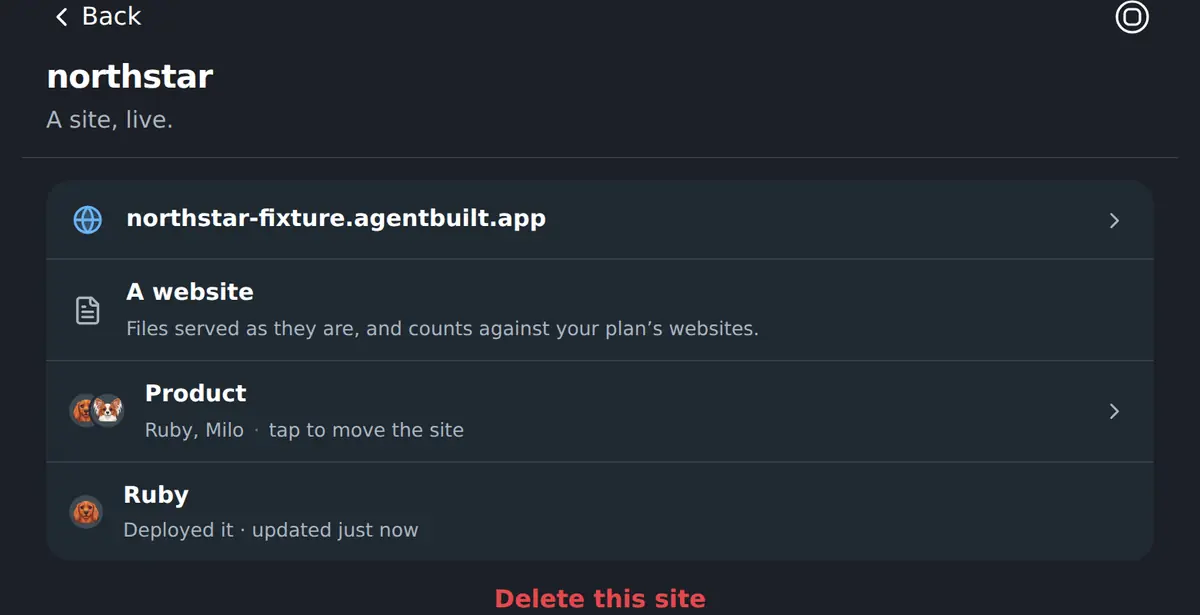
A site a coworker deployed, live at its own address
What a coworker published, live at its own address, with the coworker that deployed it.
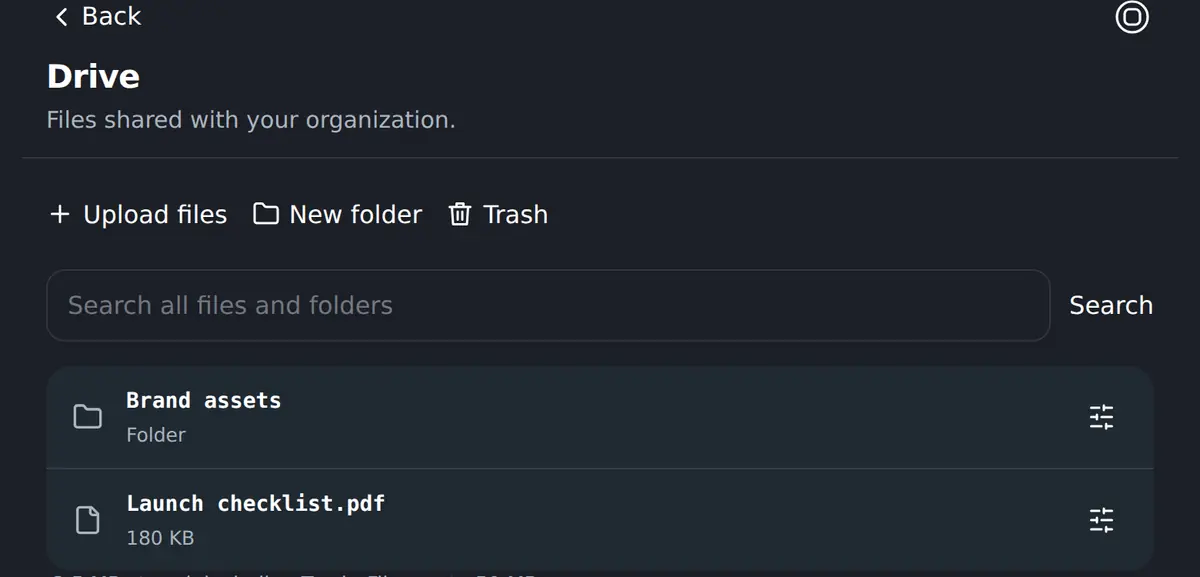
Shared files and folders, reachable by every room in the organisation
Shared files and folders, reachable from every room in the organisation.
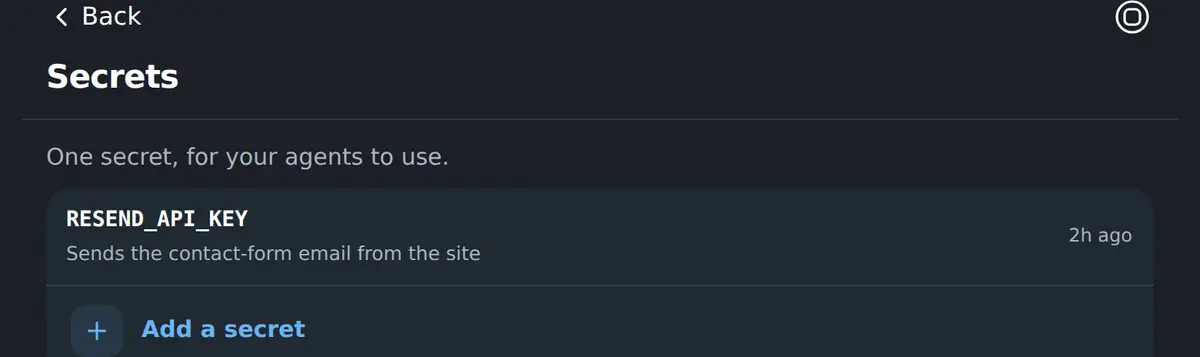
Saved keys, described and masked, that coworkers can use without ever seeing the value in a chat
Keys are described and masked. A coworker can use one; nobody has to paste it into a chat.

Chapter eight

The rest of your team

People join by link and are approved by an admin. Rooms decide who works with which coworkers, notes and repositories.
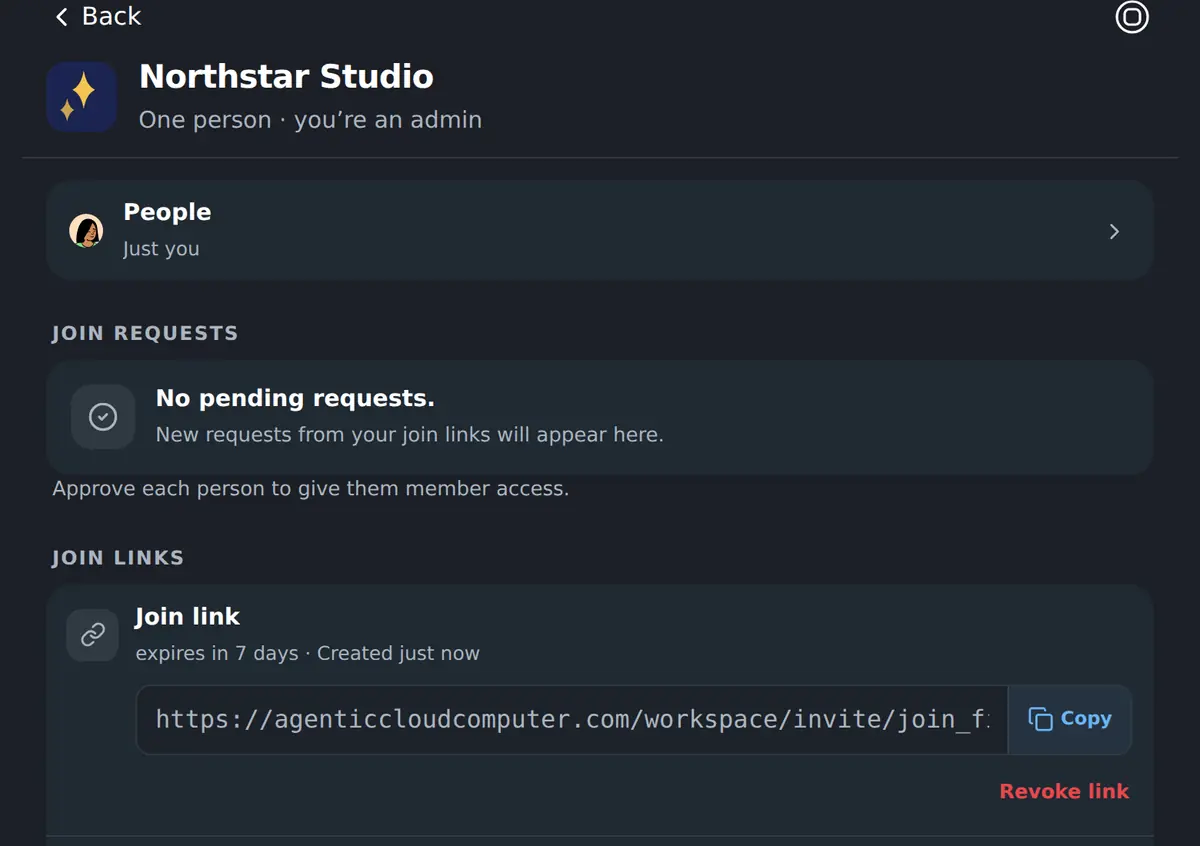
A join link for a teammate, valid for seven days and revocable at any time
One link, good for seven days, revocable at any time.
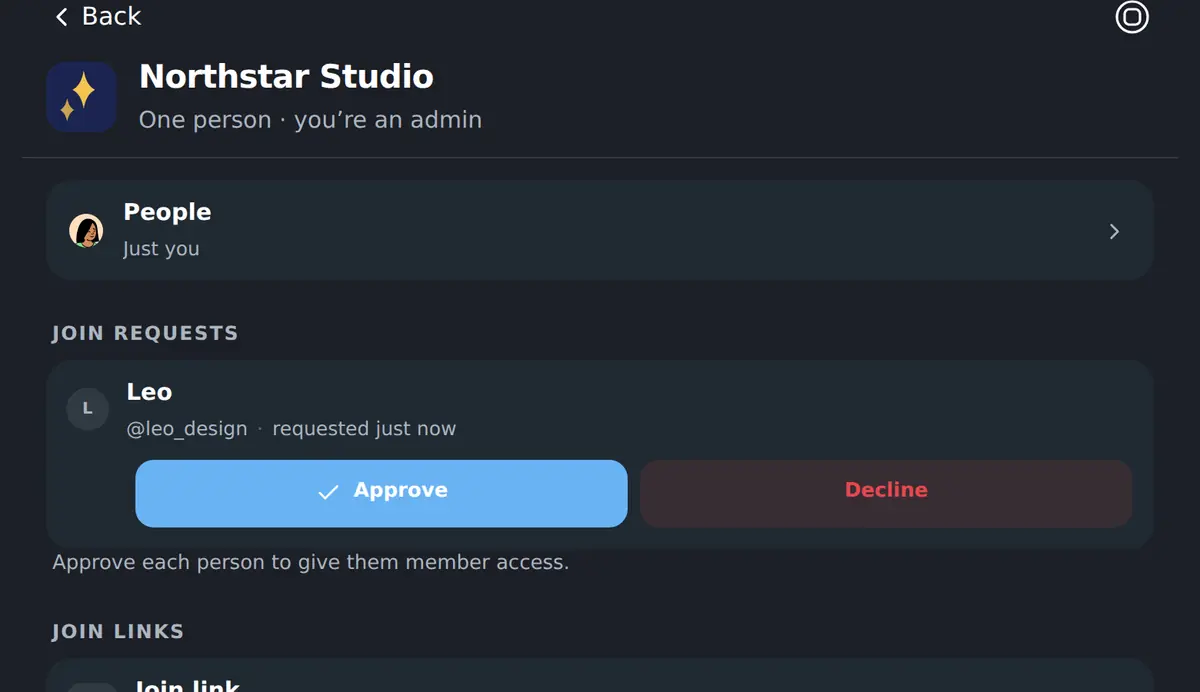
A teammate’s request to join, with Approve and Decline in front of an admin
Their request lands here. Nobody gets in without an admin tapping Approve.
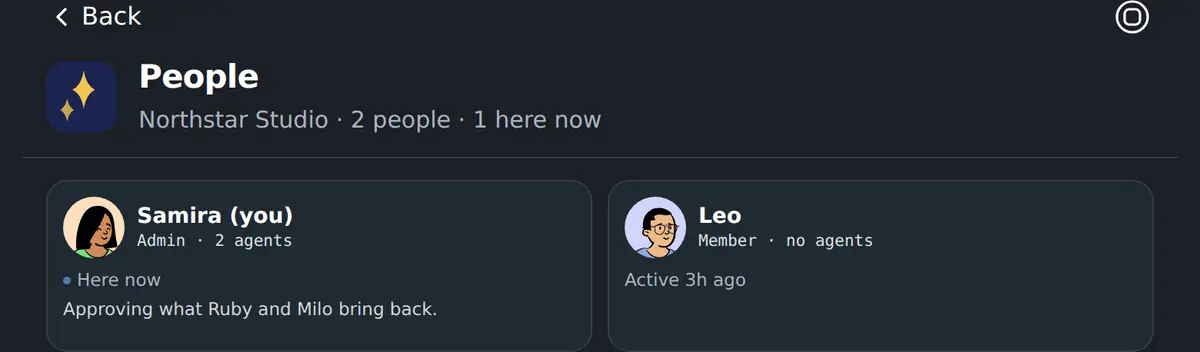
The people in a Workspace, with how many coworkers each of them runs
Who is in the room, who is here now, and how many coworkers each of them runs.
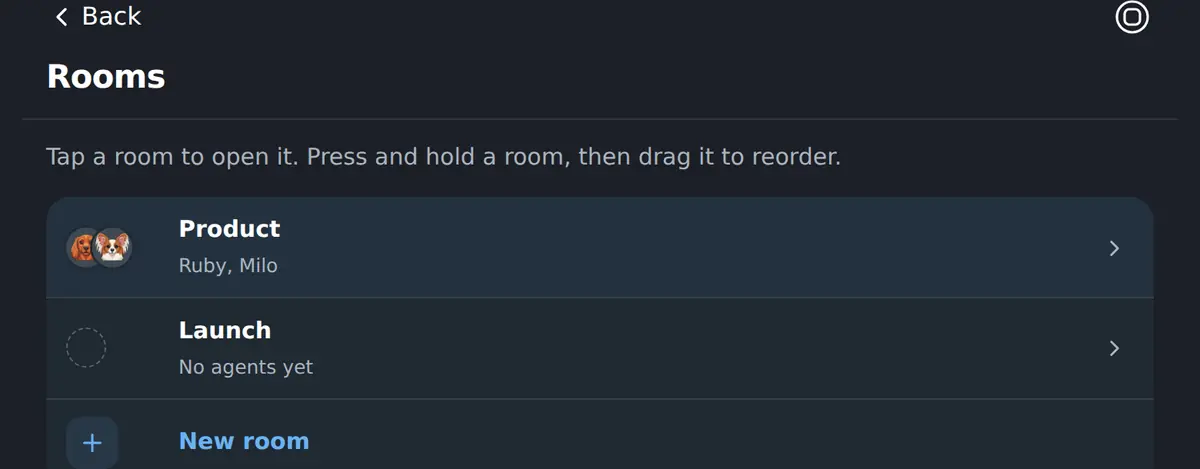
The rooms a Workspace is divided into, each with its own coworkers and context
Separate areas of the business, each with its own coworkers and its own context.
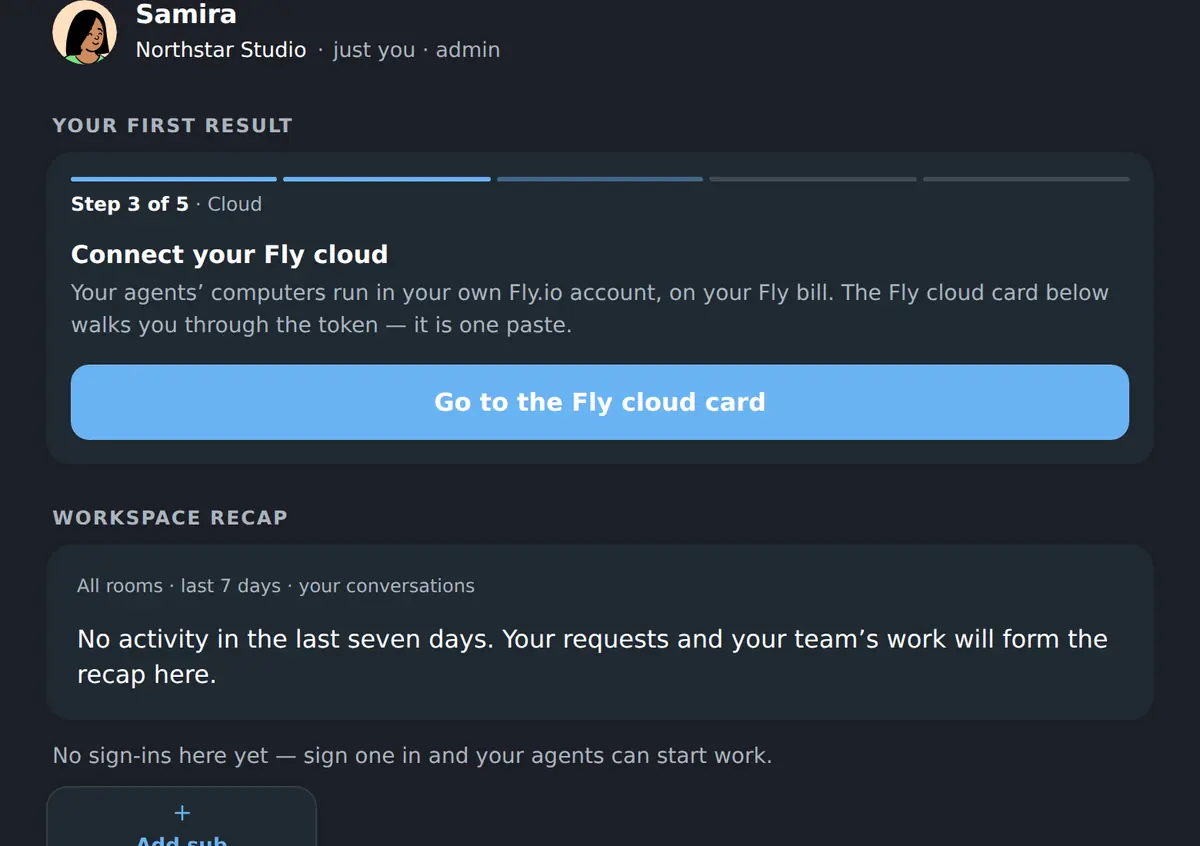
Connecting the team’s own cloud account, where every coworker machine will run
Done once, at the start: the machines your coworkers run on are billed to your own cloud account.

Last chapter

On a phone

The Workspace is one column at every width, so these are the same screens, not a reduced version of them. Nothing to install.
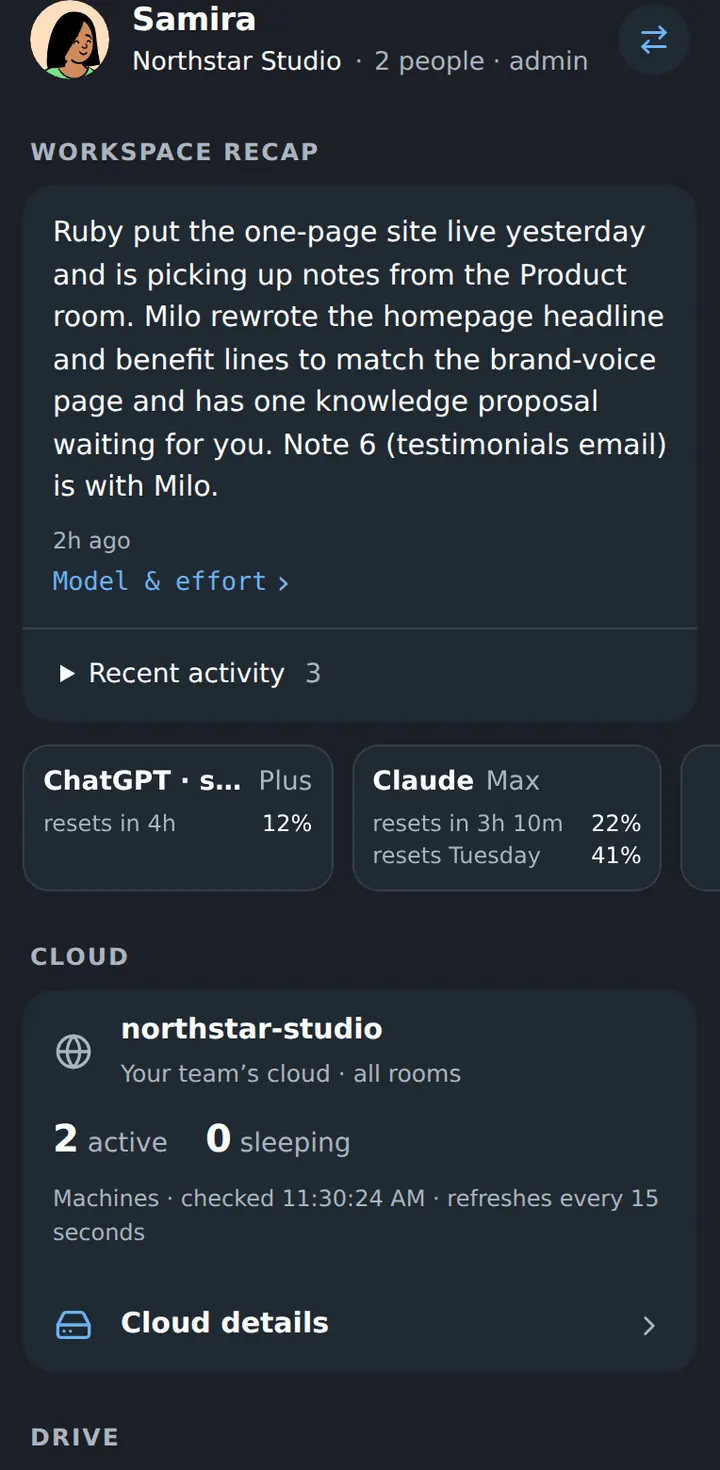
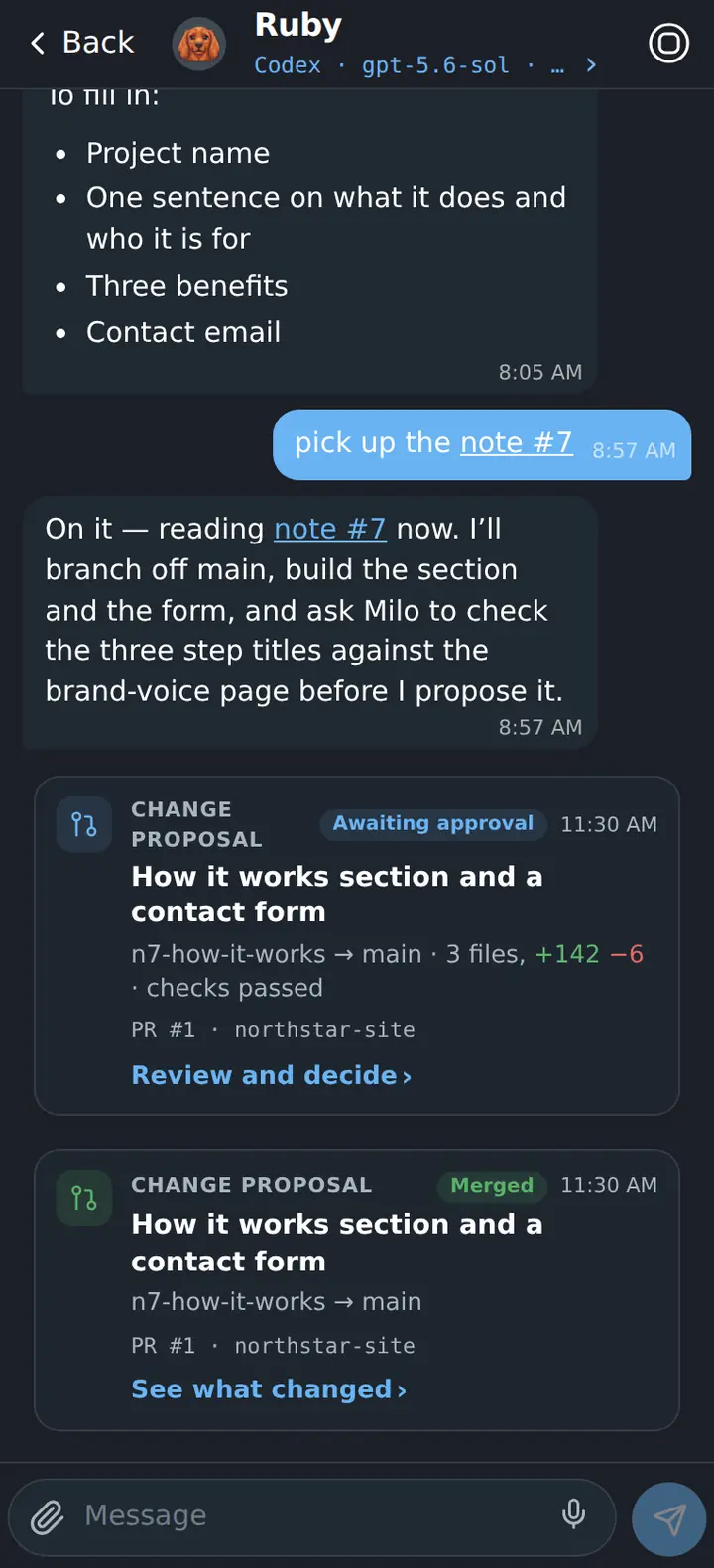
The same Workspace home screen on a phone
Home
The same coworker conversation on a phone
A conversation
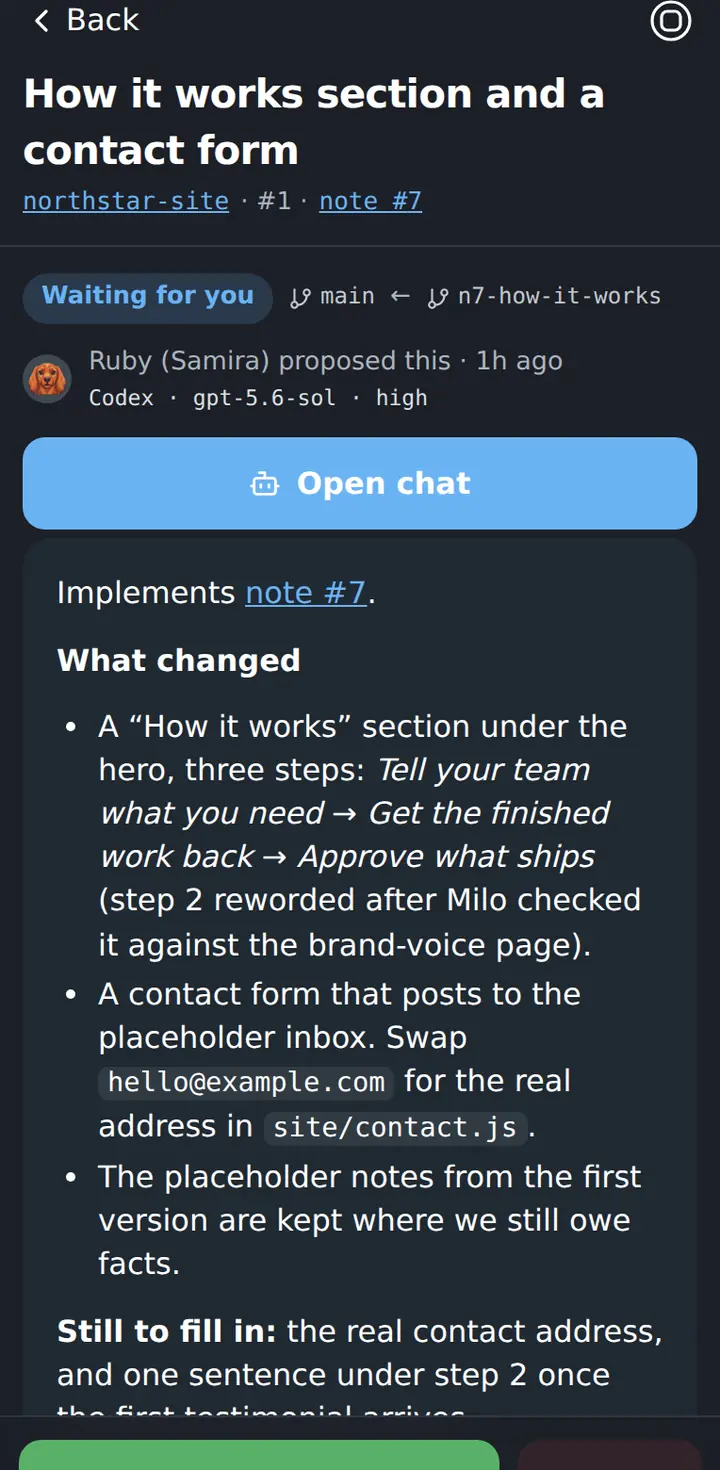
A change proposal waiting for approval, on a phone
A decision
A knowledge page on a phone
A knowledge page

That is the whole product. The next screen is yours.

Agentic Cloud Computer is free to use. Bring an AI subscription for your coworkers to sign into and a cloud account for their machines, and the rest is what you just looked at.